Author: Alex Melas

  • Accessing Internal and External Portals with a Single Email

    Scenario

    Some users need access to both the internal admin portal and the external investor portal. Since the system requires each account to have a unique email ID, you can use a “+” tag to create separate login IDs while keeping all messages in a single inbox.

    For example: If a user requires both administrative and investor portal access but only has one email address, adding a “+” tag allows the creation of distinct accounts without requiring multiple mailboxes.

    Step-by-Step Instructions

    1. Choose your tags
      Pick simple, memorable tags such as +admin and +investor.
    2. Set up the internal admin account
      • Go to the internal user management system (admin roles only).
      • Create or edit a user record with an email like: your.name+admin@yourdomain.com.
    3. Set up the external investor account
      • Manually add a new record or populate the CRM import template.
      • Use an email like: your.name+investor@yourdomain.com.
    4. Login process
      • A welcome email and password reset will be sent to each tagged email — both arrive in your one inbox.
      • Always sign in using the exact email registered for that portal.

    Optional Tips & Best Practices

    Inbox organization: Create email rules or filters

    ConditionAction
    If “To” contains +adminMove to “Platform/Admin”
    If “To” contains +investorMove to “Platform/Investor”
    • Formatting tips: Use lowercase, no spaces, and stick to letters, numbers, hyphens, or underscores in tags.
    • Provider support: Most major email providers support plus addressing, but some organizations may restrict it. If blocked, ask IT to enable it or create named aliases.
    • Security: Tags are visible in your email address; avoid including sensitive information.

    Copy-Ready Examples

    • Admin login: firstname.lastname+admin@yourdomain.com
    • Investor login: firstname.lastname+investor@yourdomain.com

    FAQ

    Q: Will I get the emails?

    A: Yes, all tagged versions deliver to your normal inbox.


    Q: Are these the same account?

    A: No, each tagged email is treated as a separate account.


    Q: Can I choose different tags?

    A: Yes, use any tag your organization prefers (e.g., +admin-qa, +investor-prod).


    Q: What if my email system doesn’t allow “+”?

    A: Ask IT to enable it or create two aliases (e.g., name.admin@... and name.investor@...).

  • Filling Out Bulk File Import Template

    The bulk file import template helps migrate mass documents to GP Portal in one import.

    Download the latest Bulk File Template available here. The first couple lines are examples that you should remove prior to populating.

    Naming Conventions

    Investor Level – Documents specific to an investor within a specific fund. Includes investor fund code, file name and extension.

    ex. EAF1INV001_John Doe Investor Document Name.PDF

    Fund Level – Documents specific to a fund. All investors within a fund will have access if allowed. Includes fund code, file name and extension.

    ex. EAF1_Fund Level Document Name.pdf

    Template for Bulk imports (allows for mass imports organized in folders)

    FieldTypeExampleDescription
    Fund CodeStringEAF1Unique short code that identifies the fund to which the document relates.
    Document LevelStringFund (possible values: Fund, Investor)Indicates the scope of the document—whether it applies to the whole fund (Fund) or a specific investor (Investor).
    Investor CodeString / NullableEAF1INV001 (blank when Document Level =Fund)Unique identifier for an investor within the fund; only populated for investor-level documents.
    Investment AdvisorStringGreat GableName of the Fund Manager responsible for the fund.
    FolderStringFinancial StatementsFolder category used to organize the document in storage.
    DateDate12/31/2021Reporting or effective date associated with the document.
    FilepathStringEAF1_GG Ventures Fund III, L.P. 2021 Audited Financial Statements.pdfFull filename or storage path of the original file as saved in the system.
    Display NameStringGG Ventures Fund III, L.P. 2021 Audited Financial StatementsHuman-readable title shown to end-users; often derived from the filename but without system prefixes or codes.
  • Document Creation

    Document generation within GP Portal enables users to import datasets and automatically generate unique PDFs for each investor. Below are step-by-step instructions for generating documents within the internal GP Portal application.

    If a Form Template has not been created yet, you will want to visit our guide on Form Management prior to beginning these steps.

    Document Creation Process

    Document Creation generates one or more documents based on selected form categories and types.

    Navigate to Document Creation

    1. Navigate to Portal Uploads in the left navigation menu.
    2. In the upper-right corner, click Add Package.
    3. Select Investor Level.
    4. Select Document Creation.

    Basic Information Section

    1. Select the Investing Entity with which to associate the documents.
    2. Choose the folder where the documents will be stored.
    3. (Optional) Apply watermarks visible upon document download by investors.
    4. Name the Document Package. This internal title will not be visible to investors.
    5. (Optional) Specify a Due Date if the document requires investor action by a certain time. This date will appear on the Document Package Details page and can be incorporated into campaigns via short tags.

    Document Generation Section

    1. Select a Form Category (e.g., PCAP).
    2. Select a Form Type (e.g., HF Onshore IS QTD, YTD & ITD Reporting).
    3. Name the generated file. This will become the file name for each document. Use dynamic tags like {{investorName}} to customize each document name.
      • (e.g., {{investorName}} Q3 PCAP 2025).
    4. Add data files by dragging and dropping them into the attachments box or by clicking Select Files.
      • The two files that should be imported are the Data File and Referential File.
    5. Click Generate Documents.
    6. A notification will inform you that your documents are processing, and you will receive an email containing a link to the completed package.
    7. If validation fails, the system will provide error logs for the failed generation. After taking note of the issues, please create a new document creation package.

    Editing the Package

    After document generation is complete:

    • Access the generated package via the Portal Uploads page, where it will appear in draft status, or directly from the email link provided.

      A list of generated documents will display the following attributes:

      • Document Name
      • Display Name
      • Investing Entity
      • Folder
      • Investor
      • Document Date
      • Published Status

      Quick Actions

      • Disable Download per Document: Prevents specific documents from being downloaded.
      • Download per Document: Allows individual document downloads.
      • View All Documents: Enables easy navigation between documents using previous and next buttons.
        • Click Download to download the PDF currently being viewed.

      Edit Package

      Editing the package mirrors the initial package creation but now displays the generated documents at the bottom. You can modify the Display Name, which investors will see on their accounts.

      Discard

      Selecting Discard removes all package contents entirely, deleting it from the uploads list.

      Submit

      Clicking Submit initiates the review process, where you select a reviewer to approve and publish the package contents.

    1. Bulk CRM Import Upload

      GP Portal gives internal users the ability to import an unlimited amount of records at once via an import template. The steps below walk users through how to successfully import a new file.

      Step 1: Access CRM

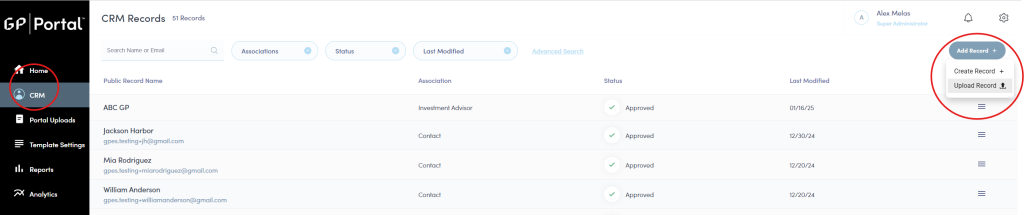
      1. Navigate to your portal and select CRM in the left navigation menu.
      2. Click on the Add Record button.
      3. Select the Upload Record option.

      Step 2: Upload Data File

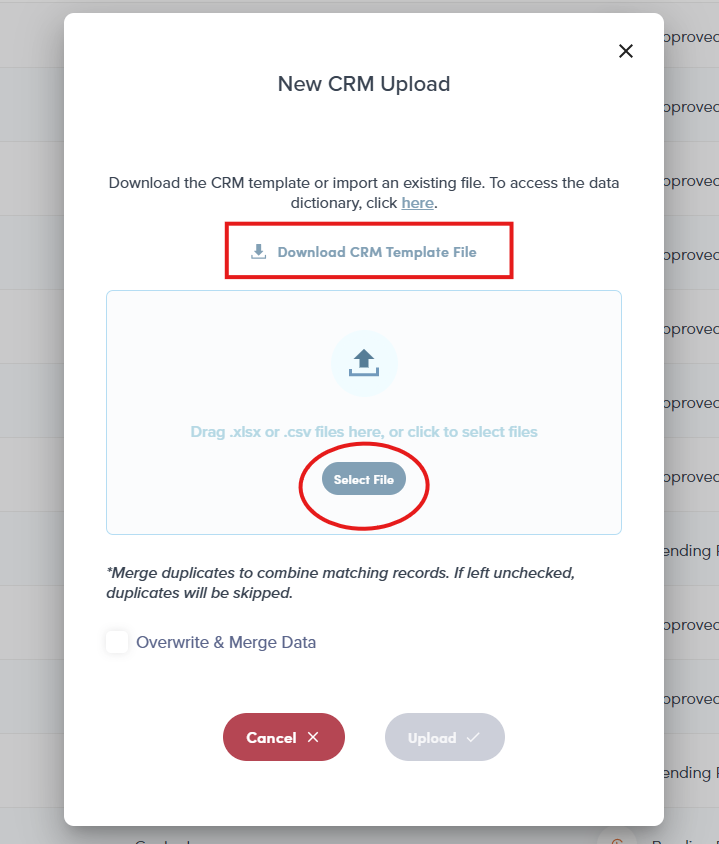
      1. If you do need to download a template to populate, click the Download CRM Template File.
        • Follow the instructions at the bottom of this article to ensure your template is populated correctly.
      2. Click Select File to upload your completed template. If you don’t yet have a template, download one in the next step. (The file must be .xlsx or .csv)
      3. You can view the CRM data dictionary here.

      Step 3: Confirming Upload

      • After upload, the file automatically begins background processing. You will receive an email indicating whether your upload was successful or failed:
        • If successful: Your email will confirm the upload and include a link to view records.
        • If unsuccessful: Your email will include details on errors and a link to the error report.
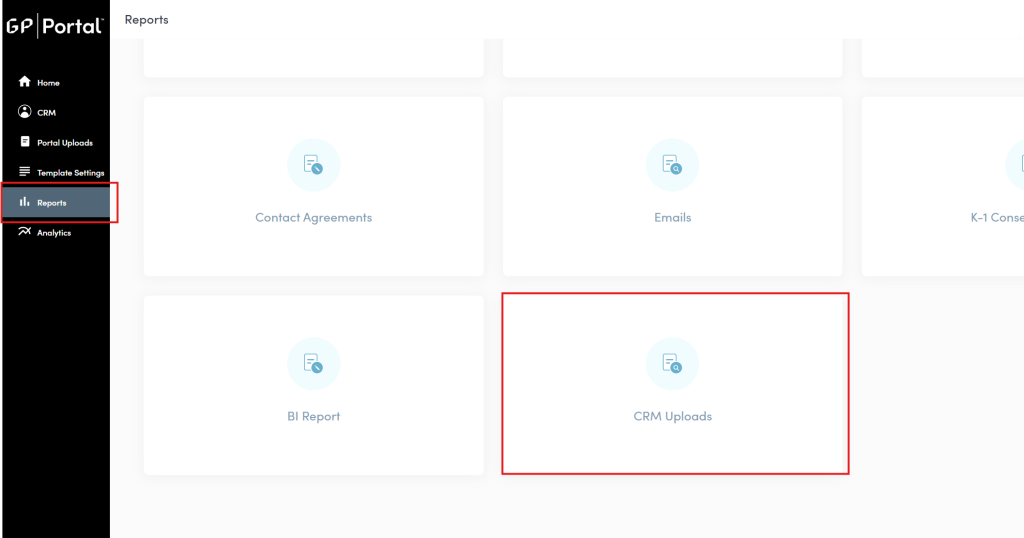
      • Inside the Reports tab, navigate to the CRM Upload reports.
        • You will see this upload in the pending state.

      Step 4: Reviewing Upload Logs

      1. Go to the Reports tab.
      2. Click CRM Upload.
      3. Find your recent upload to check status (successful or failed).

      Step 5: Viewing Summary (Successful Uploads)

      To view a report that has finished successfully:

      1. Select a successful upload from the logs.
      2. Click the hamburger button.
      3. Choose View Summary.
      4. The summary displays:
        • Record types processed;
        • Counts of new records, updated records, and skipped records.

      Step 6: Viewing Errors (Failed Uploads)

      If your upload failed:

      1. Click the hamburger button to the right of your upload row.
      2. Select View Errors.
      3. Use the error report to identify and correct all issues before re-uploading.
        • Type: Error type.
        • Description: Why this is an error.
        • Locations: The row number.
        • Worksheet: The tab in which the error occurred.
      4. After correcting the errors, re-upload the file.
        • Continue correcting and re-uploading until the file processes without any errors.

      How to Populate Template (From Scratch)

      When first uploading this template, be sure to follow these rules:

      1. Fields with green headers are required and must be completed. Fields with blue headers are optional and may be left blank unless otherwise noted.
        • *The only exception to this is the Last Name field, which can be left blank if the record is a Company versus an Individual.
      2. Sheet 1: Investment Advisor:
        • Investment Advisor Name: The name of the investment advisor or management firm. In most cases, this is a 1:1 match with the client name.
      3. Sheet 2: Investing Entity:
        • Fund Code: A unique alphanumeric code to identify the fund (e.g., IEF1). This code must match exactly across all tabs.
        • Investing Entity Name: The full name of the fund.
        • Investment Advisor Name: Must match entry on tab 1.
        • Entity Type (Closed/Open/Hybrid): What type of fund it is:
          • Closed: Fixed-term vehicle where investors commit capital, which is drawn and returned over the fund’s life.
          • Open: Investment vehicle that continuously offers new shares and allows existing investors to redeem shares at the fund’s net asset value on a periodic basis.
          • Hybrid: Combines elements of both, offering long-term capital with limited redemption windows.
        • Commencement Date: The start date of the fund.
      4. Sheet 3: Investor:
        • Fund Code: The code of the fund the investor is participating in (must match an entry in Sheet 2).
        • Investor Code: A unique alphanumeric code of your choosing to identify this specific investor–fund relationship. A common convention is to combine the fund code with a sequence (e.g., IEF1001).
        • External ID: This will be the system’s unique alphanumeric identifier for this investor. Use any convention you like (e.g. ID001, ID002, etc.).
          • Note: If you have the same investor listed more than once on the template (e.g. they participate in multiple funds), be sure the external ID matches across their rows. If the same investor is added more than once with different external IDs, the system will create duplicate investor records.
        • External ID Name: The source of the external ID. When populating manually, feel free to use any name you wish (e.g. SysID).
        • First Name: The investor’s first name, or business name if a company.
        • Last Name: The investor’s last name. This may be left blank if the record is a company.
        • Individual/Company: Select whether the record is an Individual or a Company.
      5. Sheet 4: Communication (Contacts):
        • Investor Code: The unique code from Sheet 3 that this contact is associated with (e.g., IEF1001). There can be many contacts to one investor code. Investors can also be their own contacts.
        • First Name: The contact’s first name, or business name if a company.
        • Last Name: The contact’s last name. This may be left blank if the record is a company.
        • Email: Contact’s email address. This will be used for login and notifications. Each investor/contact pair requires a unique email address.
          • For example, if one contact is a contact for more than one investor, they could use the same email as long as they’re linked to different investor codes.
        • Individual/Company: Only these options may be selected.
        • Folder Access: Indicate “yes” if this folder should be viewable to this contact. Indicate “no” to prevent the contact from viewing this folder.
          • Only the portal’s default folders are listed in the template. New folders can be created by portal admin and preparers, and their permissions can be assigned after being added.

      More information can be found in the CRM Import Data Dictionary.

    2. CRM Import Data Dictionary

      This data dictionary provides clarity into each of the fields within the GP Portal CRM import. GP Portal is platform-agnostic and does not support automated data migration from third-party systems. Because fund administration platforms may use different field names or organizational structures, clients are responsible for mapping their internal data to this format. This dictionary is designed to support that effort.

      Within the import template, each column is color-coded:

      • Green: Indicates the field is required*.
      • Blue: Indicates the field is optional.

      Required fields are needed to successfully create the records and their associations. Once created, records can be edited to include additional information if desired.

      *Last Name is a blue field but is required for investors and contacts denoted as individuals; if the investor/contact is a company, Last Name can be left blank.

      While filling out the template, keep in mind:

      • One Investment Advisor may oversee multiple Investing Entities.
      • One Investing Entity can have multiple Investors.
      • One Investor can have multiple associated Contacts (Communication tab).
      • Each Contact must be tied to an Investor via the Investor Code.

      📗 Investment Advisor Tab

      This sheet establishes the investment advisor record, typically representing the management firm overseeing one or more investing entities.

      Field NameDescriptionExample
      Investment Advisor NameName of the investment advisory firm managing the investing entities.Silver Oak Capital

      📘 Investing Entity Tab

      This sheet defines the investing entity records managed by the investment advisor.

      Field NameDescriptionExample
      Fund CodeUnique identifier for the investing entity/fund. This is used to link investors to entities.SOF01
      Investing Entity NameName of the investment fund or entity.Silver Oak Fund I
      Investment Advisor NameName of the managing investment advisor (links to Investment Advisor Tab).Silver Oak Capital

      📙 Investor Tab

      This sheet establishes investor records and links each investor to the fund(s) in which they have invested.

      Fields in italics below are not required but are included for information purposes.

      Field NameDescriptionExample
      Fund CodeIdentifier linking investor to an investing entity (links to Investing Entity Tab).SOF01
      Investor CodeUnique identifier for each investor. Use a consistent convention, such as combining the Fund Code with a numeric sequence.SOF01001; INV0001
      First NameInvestor’s first name.John; The Money Firm
      Last NameInvestor’s last name. Leave this blank only if the investor is a company. For individuals, this field is required.Smith
      Individual / CompanyIndicates if the investor is an individual or a company/entity. Companies do not require the Last Name field to be completed.Individual
      Foreign / DomesticIndicates investor’s domestic or foreign status.Domestic
      EmailInvestor’s primary contact email address.john.smith@example.com
      Address 1Primary address line for investor.123 Elm Street
      Address 2Secondary address line (optional).Suite 101
      CityCity of investor’s primary address.Albany
      StateState abbreviation of primary address.NY
      ZipPostal code.12205
      CountryCountry of investor’s address.USA
      Tax IDTax Identification Number (domestic investors).123-45-6789
      GIIN/Foreign TINGlobal Intermediary Identification Number or Foreign Tax ID Number.98AB123456
      SubscriptionAmount the investor has committed to investing.$1,000,000

      📕 Communication Tab

      This sheet defines the association between contacts and their corresponding investors, including the folder access granted to each contact (or to the investor, if they are listed as their own contact). Folder access determines which documents a contact can view and is managed by the portal administrator. For each folder, denote access using “Yes” or “No”.

      Once a contact record is created, folder access can be modified at any time directly within the CRM in GP Portal.

      Fields in italics below are not required but are included for information purposes.

      Field NameDescriptionExample
      Investor CodeIdentifier linking to specific investor (links to Investor Tab).SOF01001; INV0001
      First NameContact’s first name.Jane; The Money Firm
      Last NameContact’s last name. This can be left blank of the contact is a company.Doe
      EmailContact’s email address.jane.doe@example.com
      SalutationFormal salutation or title.Ms.
      SuffixContact’s name suffix.CPA
      Job TitleJob title or position held by contact.CFO
      Business PhoneContact’s business phone number.(212) 555-7890
      Mobile PhoneContact’s mobile phone number.(518) 555-1234
      Individual / CompanyIndicates if contact represents an individual or company. Companies do not require Last Name to be completed.Individual
      Foreign / DomesticIndicates domestic or foreign status of contact.Domestic
      Annual MeetingsConsent to receive Annual Meetings notifications.Yes
      Annual ReportsConsent for receiving annual reports.Yes
      Audited StatementsConsent for receiving audited financial statements.Yes
      Financial StatementsConsent for receiving financial statements.Yes
      Investment MemorandumConsent to receive investment memoranda.Yes
      Legal Documents – FundConsent for receiving fund-specific legal documents.Yes
      Other NoticesConsent to receive miscellaneous notices.Yes
      Quarterly ReportsConsent for receiving quarterly reports.Yes
      Capital Account StatementsConsent to receive capital account statements.Yes
      Capital CallsConsent for receiving capital call notifications.Yes
      Capital NoticesConsent for receiving capital notices.Yes
      DistributionsConsent for distribution notices/payments.Yes
      K1 ConsentConsent to receive tax form K1.Yes
      Legal Documents – InvestorConsent to receive investor-specific legal documents.Yes
      Tax InformationConsent to receive tax-related documentation.Yes

    3. Acronymns

      StrategyDefinition
      ABSAsset Backed Securities means invest in assets like loans or mortgages
      ADVISOR EQUITYAdvisor Equity means invest in stocks chosen by your advisor
      ALTSAlternatives means invest outside stocks, bonds, and cash
      CMCash Management means invest in low-risk, readily available assets like cash
      COMMCommodities means invest in raw materials like gold
      CONSConsulting Advisor is fees for financial advisor advice
      CURRCurrency
      CWCredit Warehouse
      DADigital Assets
      DBODistressed Buyout
      Debt DistressDebt Distress
      Debt DiverseDebt Diverse
      DERDerivatives means invest in contracts based on underlying assets
      DKDon’t Know
      EMEmerging Markets means invest stocks/bonds of developing countries
      EQLEquipment Leasing
      EquityEquity means invest in company ownership like stocks
      ESGEnvironmental Social Governance
      ETFSExchange Traded Funds
      FILMFilm
      FMFrontier Markets
      FOFFund of Funds
      FXForeign Exchange
      GEGrowth Equity are investments in companies that are expected to grow their earnings at a faster rate than the overall market
      ILIQDIlliquid Assets are investments that are difficult to sell quickly without a loss in value
      ILSInsurance Linked Securities
      InactiveInactive
      INDEXIndex
      LBOLeveraged Buyout means acquire companies using mostly borrowed money
      LCLLegal Claims
      LPILimited Partnership Interests
      MAManaged Accounts
      MEZZMezzanine Financing is a hybrid of debt and equity financing that provides a company with additional capital
      MFMutual Fund
      Multi FundsMultiple Funds
      MULTIPLEMultiple Strategies
      Multi-StratMulti-Strategy
      MUSICMusic
      MUTUAL FUNDSMutual Funds
      NDNot Disclosed same as DK
      OTHERAll Other Strategies
      OZOpportunity Zone means invest in distressed areas for tax benefits
      PEPrivate Equity
      QuantQuantitative
      REReal Estate
      RWARetail Wealth Advisor
      SAFSecuritized Asset Fund
      SBLSmall Business Lending
      SERVICE PROVIDERService Provider
      VCVenture Capital is invest in early-stage, high-risk companies
    4. Types of Funds

      Fund TypeDefinition
      HFHedge Fund
      LFLiquidity Fund
      PEPrivate Equity Fund
      REReal Estate Fund
      SAFSecuritized Asset Fund
      VCVenture Capital Fund
      OtherOther
      SubSub-Advised Fund
      MFMutual Fund
    5. Other Fund Type

      TypeDefinition
      OTHER-AIAlternative Investments
      OTHER-CEFClosed End Fund
      OTHER-CFCControlled Foreign Corporation
      OTHER-CMCash Management
      OTHER-COINVESTMENT VEHICLECoinvestment Vehicle
      OTHER-COMMCommodity
      OTHER-COMMINGLEDCommingled
      OTHER-DEBT-DISTRESSDebt-Distress
      OTHER-DEBT-DIVERSEDebt-Diverse
      OTHER-DEBT-DIVERSE Fixed IncomeDebt-Diverse
      OTHER-DKDon’t Know
      OTHER-DK Don’t KnowDon’t Know
      OTHER-EFEmployee Fund
      OTHER-ELEquipment Loans
      OTHER-EMEmerging Market
      OTHER-EQEquity
      OTHER-FOFamily Only
      OTHER-FOFFund of Fund
      OTHER-GFGrowth Finance Fund
      OTHER-ILQLiquidating Hedge Fund Vehicle
      OTHER-INSInsurance Dedicated Fund
      OTHER-INSTInstitutional Trust
      OTHER-INVESTMENT TRUSTInvestment  Trust
      OTHER-LGLLitigation Fund
      OTHER-LLCLLC
      OTHER-LOLong Only
      OTHER-LO EQLong Only Equity
      OTHER-LO FILong Only Fixed Income
      OTHER-LONG ONLYLong Only
      OTHER-LONG ONLY-COMMLong Only Commodity
      OTHER-LPILimited Partner Interest
      OTHER-MEZZMezzanine
      OTHER-MFMutual Fund
      OTHER-MFTMultiple Fund Types
      OTHER-MMMoney Market
      OTHER-MSRMortgage Servicing Rights
      OTHER-MULTIMulti Strat
      OTHER-PEPrivate Equity
      OTHER-PFPrivate Fund
      OTHER-PIVPooled Investment Vehicle
      OTHER-PRIVATE FUNDPrivate Fund
      OTHER-QUANTQuant
      OTHER-REReal Estate
      OTHER-SAFSecuritized Asset Fund
      OTHER-SBICSmall Business Investment Company
      OTHER-SBLSmall Business Lending
      OTHER-SCFSeed Capital
      OTHER-SFCSpecialty Finance Company
      OTHER-SIVSingle Investment Vehicle
      OTHER-SMASeparately Managed Account
      OTHER-SPCSegregated Portfolio Company
      OTHER-SPIVSingle Purpose Investment Vehicle
      OTHER-TRSTTrust
      OTHER-UCITSUCIT
      OTHER-VCVenture Capital
    6. Fund Descriptions

      Fund Tab ColumnsDefinition
      Fund NameName of the private fund
      FundIDUnique identifier for the private fund
      AdviserLegal name of the fund advisor
      CRD Central Registration Depository number, a unique identifier for investment advisors and brokers.
      UniqueManagerUnique manager group of the fund advisor
      manager_idUnique identifier assigned by Convergence to a Manager Group
      TypeThe category of the fund (e.g., mutual fund, hedge fund).
      GAVGross Asset Value, the total value of the fund’s assets before subtracting liabilities.
      ReportedGAVDisclosed amount of the fund
      UniqueGAVDeduplicated amount of the fund
      IRS_NumberInternal Revenue Service (IRS) number/Tax ID of the Fund Entity
      Sec File #SEC File Number of the Fund’s FormD Filing
      Sec File # CountNumber of unique FormD Filings that corresponds to a Fund
      First Filing DateFund’s First FormD Filing Date, the date the fund first registered with the SEC
      First Sale DateFund’s Date of First Sale to the Investors
      Offering AmountFund’s intended offering amount
      Capital RaisedCapital raised by the Fund
      ExemptionsList of exemptions that Fund is subjected to
      AdministratorName(s) of the fund administrator per the ADV
      Administrator GroupFamily names of the fund administrator (e.g. – Citibank is part of the SS&C family)
      AuditorName(s) of the fund auditor
      Auditor GroupFamily names of the fund auditor (e.g. – Rothstein Kass is part of the KPMG family)
      ISMasterMaster fund identifier
      ISFeederFeeder fund identifier
      ISFOFFund Of Funds identifier
      isSingleSingle fund identifier
      Master_ID_MatchFor feeder funds, the corresponding master fund ID
      MasterFundNameFor feeder funds, the name of the master fund
      ExemptSEC filing status (“exempt” or “non-exempt)
      StreetAdvisor’s street address
      CityAdvisor’s city
      StateAdvisor’s state
      ZipAdvisor’s zip code
      Primary CountryAdvisor’s country
      Fund StructureIdentifies how the fund is structured.  Examples include Master Fund, Feeder Fund, Fund of Funds and Segregated Portfolios.
      Fund StrategyConsists of the types of securities that the fund invests in. Examples include Public Equities, Debt-Diverse, Private Equity and Real Estate.
      Fund Investment StyleIdentifies the method and philosophy followed by the fund. Examples include Absolute Return, Arbitrage, Distressed and Value-Oriented.
      Investment SectorsIdentifies the industry sector that the fund focuses on. Examples include Healthcare, Retail, Infrastructure and Life Sciences.
      GeographyIdentifies the geographic location where the fund invests in. Examples include the United States, Asia and Europe.
      Filing DateDate in which the ADV was filed
      BrokersA financial institution that safeguards assets for clients.
      CustodiansNumber of unique custodians disclosed for the fund
      Broker NamesComma delimited list of prime brokers disclosed in the fund
      Custodian NamesComma delimited list of custodians disclosed in the fund
      Fund CountryCountry in which the fund is organized
      Fund StateState within the country in which the fund is organized
      Effective DateDate the fund was opened
      IndependentValuationPercentPercentage of the fund’s securities that are valued by independent 3rd parties
      SigNameSignature Name on the ADV
      CEOChief Executive Officer of the Advisor
      CEO EmailCEO’s Email Address
      CFOChief Financial Officer of the Advisor
      CFO EmailCFO’s Email Address
      COOChief Operating Officer of the Advisor
      COO EmailCOO’s Email Address
      CCOChief Compliance Officer of the Advisor
      CCO EmailCCO’s Email Address
      CTOChief Technology Officer of the Advisor
      CTO EmailCTO’s Email Address
      CROChief Risk Officer of the Advisor
      CRO EmailCRO’s Email Address
      CLOChief Legal Officer of the Advisor
      CLO EmailCLO’s Email Address
      HRHead of Human Resources of the Advisor
      HR EmailHR’s Email Address
      Total RAUMThe Advisor’s total regulatory assets under management. (TotalRAUM = DiscRAUM + NonDiscRAUM)
      PFRAUMThe Advisor’s total private fund regulatory assets under management
      CivilIndicates whether the Advisor has incurred a Civil Violation
      CriminalIndicates whether the Advisor has incurred a Criminal Violation
      RegulatoryIndicates whether the Advisor has incurred a Regulatory Violation
      GPName of the General Partner (“GP”) for the private fund
      ManagerName of the Portfolio Manager for the private fund
      DirectorName of the Director for the private fund
      TrusteeName of the Trustee for the private fund
      LiquidityDiscribes the fund category such as Open ended fund , Close ended fund
      ReportDateDate on which the report is generated at Convergence
    7. Advisor Descriptions

      Advisor Tab ColumnsDefinition
      NameAdvisor name
      LegalNameAdvisor’s legal name
      Unique ManagerConvergence assigned name of the manager group
      manager_idUnique identifier assigned by Convergence
      Exempt_StatusSEC filing status (“excempt” or “non-exempt)
      CRDUnique number assigned to the advisor by the SEC
      StrategyPrimary investment strategy
      PICRAUM_CalcPercent of TotalRAUM that is private funds
      DiscRAUMTotal disclosed discretionary regulatory assets under management
      NonDiscRAUMTotal disclosed non-discretionary regulatory assets under management
      TotalRAUMTotal disclosed regulatory assets under management. (TotalRAUM = DiscRAUM + NonDiscRAUM)
      PFRAUMTotal private fund regulatory assets under management
      PrimaryAdministratorFund administrator responsible for the greatest percentage share of wallet
      PrimaryAuditorFund auditor responsible for the greatest percentage share of wallet
      Private FundsNumber of private funds
      Dominant FundThe type of fund representing the majority of the advisor’s PFRAUM
      Sub-Advised FundsNumber of sub-advised private funds
      FTETotal number of full-time employees disclosed by the advisors in the group
      IPTotal number of investment professionals disclosed by the advisors in the group
      NIPTotal number of non-investment professionals disclosed by the advisors in the group
      FTE_BNRatio of full-time employees to TotalRAUM (in billions)
      IP_BNRatio of investment professionals to TotalRAUM (in billions)
      NIP_BNRatio of non-investment professionals to TotalRAUM (in billions)
      NIP_FTERatio of non-investment professionals to full-time employees
      NIP_IPRatio of non-investment professionals to investment professionals
      PrimaryCountryAdvisor’s primary country
      StreetAdvisor’s primary street
      CityAdvisor’s primary city
      StateAdvisor’s primary state
      ZipAdvisor’s primary zip code
      PICClientsPercent of advisor clients in private funds
      Management FeePercentage of assets under management
      Hourly ChargesHourly charges
      Newsletters/PeriodicalsSubscription fees
      Other Fixed FeesFixed fees
      CommissionsCommissions
      Performance FeesPerformance-based fees
      Other CompOther
      Other Comp TextWhat the advisor wrote in if Comp7
      Continuous SupervisionAdvisor funds are subject to continuous supervision
      DiscAcctsTotal number of discretionary accounts disclosed by the advisor
      NonDiscAcctsTotal number of non-discretionary accounts disclosed by the advisor
      TotalAccountsTotal number of accounts disclosed by the advisor
      Financial Planning ServicesFinancial planning services
      PortMgmt Indiv/SmallBusPortfolio management for individuals and/or small businesses
      PortMgmt 40ActBDCPortfolio management for investment companies
      PortMgmt Pooled Investment VehiclesPortfolio management for pooled investment vehicles
      PortMgmt Bus/Inst ClientsPortfolio management for businesses
      Pension ConsultingPension consulting services
      Adviser SelectionSelection of other advisors
      Publication Periodicals NewsPublication of periodicals or newsletters
      SecRatings-PricingServicesSecurity ratings or pricing services
      Market Timing ServicesMarket timing services
      EducationalSeminarsEducational seminars/workshops
      Other Advisory ActivitiesOther activities
      OfficeCountTotal number of unique office locations disclosed by the advisor
      AffiliateCountTotal number of unique affiliates disclosed by the advisor
      Broker/DealerEmployees/related persons are either registered representatives of a broker-dealer or are engaged in the broker-dealer business
      RegulatoryRegimeCountTotal number of unique regulatory regimes disclosed by the advisor
      BeneficialOwnerCountThe sum of the number of limited partners disclosed by the advisor
      NonUSBeneficialOwnerCountThe sum of the number of non-US limited partners disclosed by the advisor
      UniqueAuditorsNumber of unique private fund auditors servicing the advisor
      UniqueBrokersNumber of unique private fund prime brokers servicing the advisor
      TotalBrokersNumber of private fund prime brokers servicing the advisor
      UniqueCustodiansNumber of unique private fund custodians servicing the advisor
      TotalCustodiansNumber of private fund custodians servicing the advisor
      UniqueAdministratorsNumber of unique private fund administrators servicing the advisor
      ExternalMarketersNumber of unique external marketers servicing the advisor
      FilingDateMost recent ADV filing date
      CEOChief Executive Officer of the Advisor
      CEO EmailCEO’s Email Address
      CFOChief Financial Officer of the Advisor
      CFO EmailCFO’s Email Address
      COOChief Operating Officer of the Advisor
      COO EmailCOO’s Email Address
      CCOChief Compliance Officer of the Advisor
      CCO EmailCCO’s Email Address
      CTOChief Technology Officer of the Advisor
      CTO EmailCTO’s Email Address
      CROChief Risk Officer of the Advisor
      CRO EmailCRO’s Email Address
      CLOChief Legal Officer of the Advisor
      CLO EmailCLO’s Email Address
      HRHead of Human Resources of the Advisor
      HR EmailHR’s Email Address
      SurpriseAuditIndicates whether the Adviser underwent an annual surprise examination by an independent public accountant to verify the clients’ funds and securities
      SurpriseAuditorName of the Audit Firm that conducted the surprise examination
      ReportDateDate on which the report is generated at Convergence